
 HELICAL
Helical Instructions / Upgrade Intimation to Registration
How to Upgrade an Intimation to a Full Registration via Helical
This guide explains how to upgrade an existing animal intimation to a full registration, from selecting the upgrade form to reviewing and submitting the details.
Before You Start
Make sure you have the following ready before logging in:
- Your Helical login details and access to the relevant member or account
- The tag number of the animal currently recorded as an intimation
- The full registration name you want to use for the animal
Step 1
Start in your member account
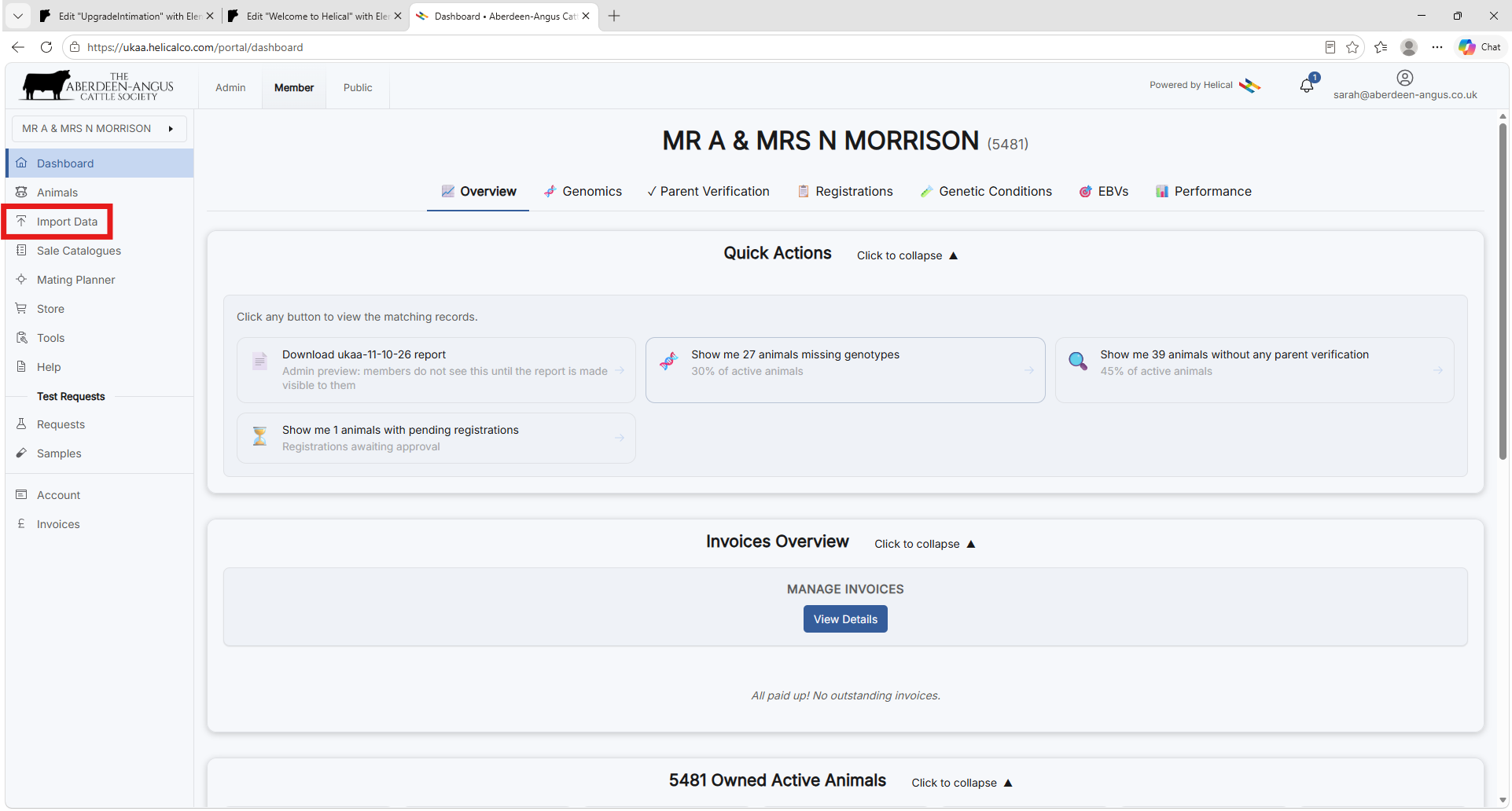
- Open Helical and select the correct member or account.
- In the left-hand menu, select Import Data.
Step 2
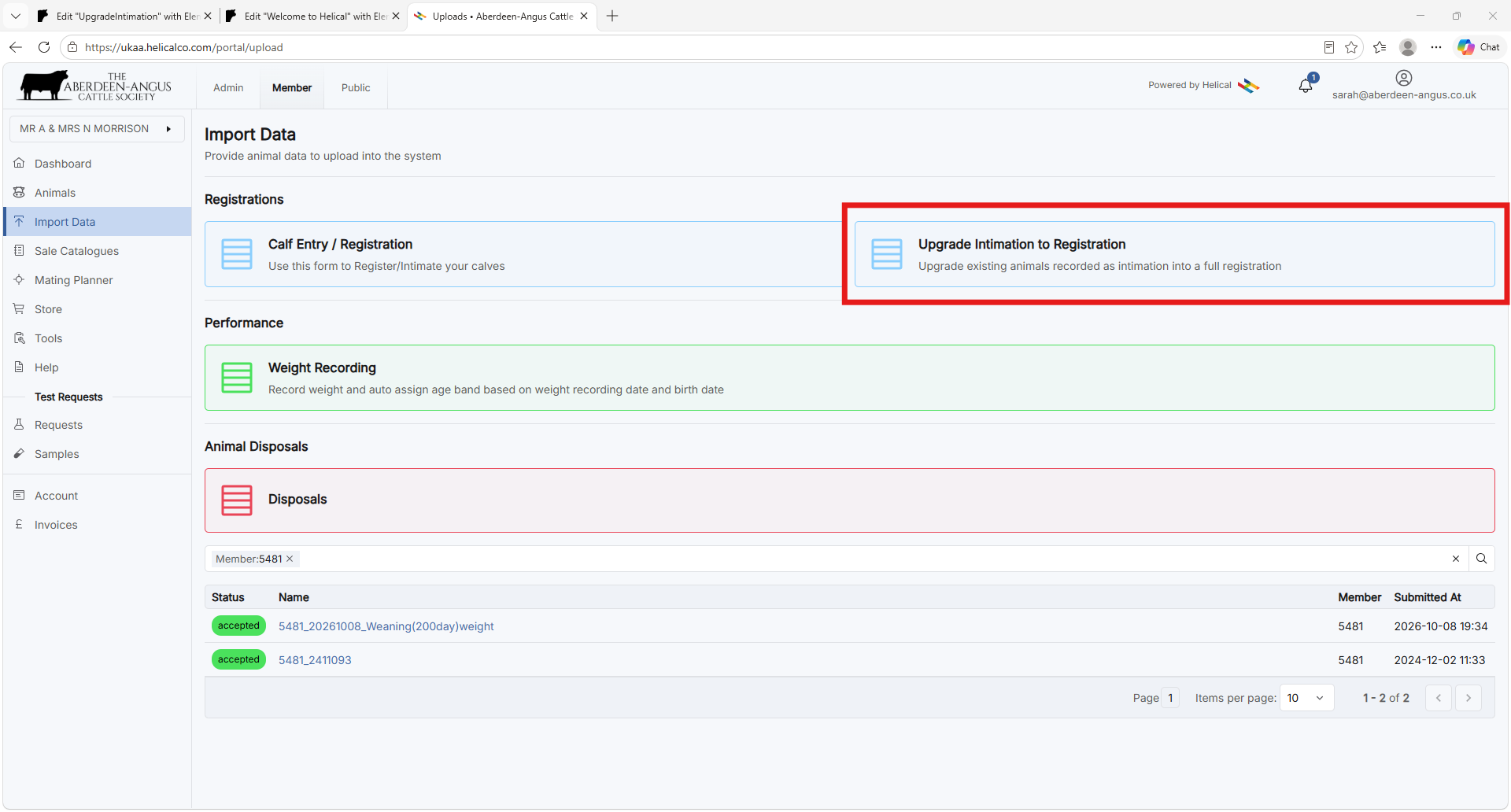
Choose the upgrade form
- Under Registrations, select Upgrade Intimation to Registration.
Step 3
Find and check the animal
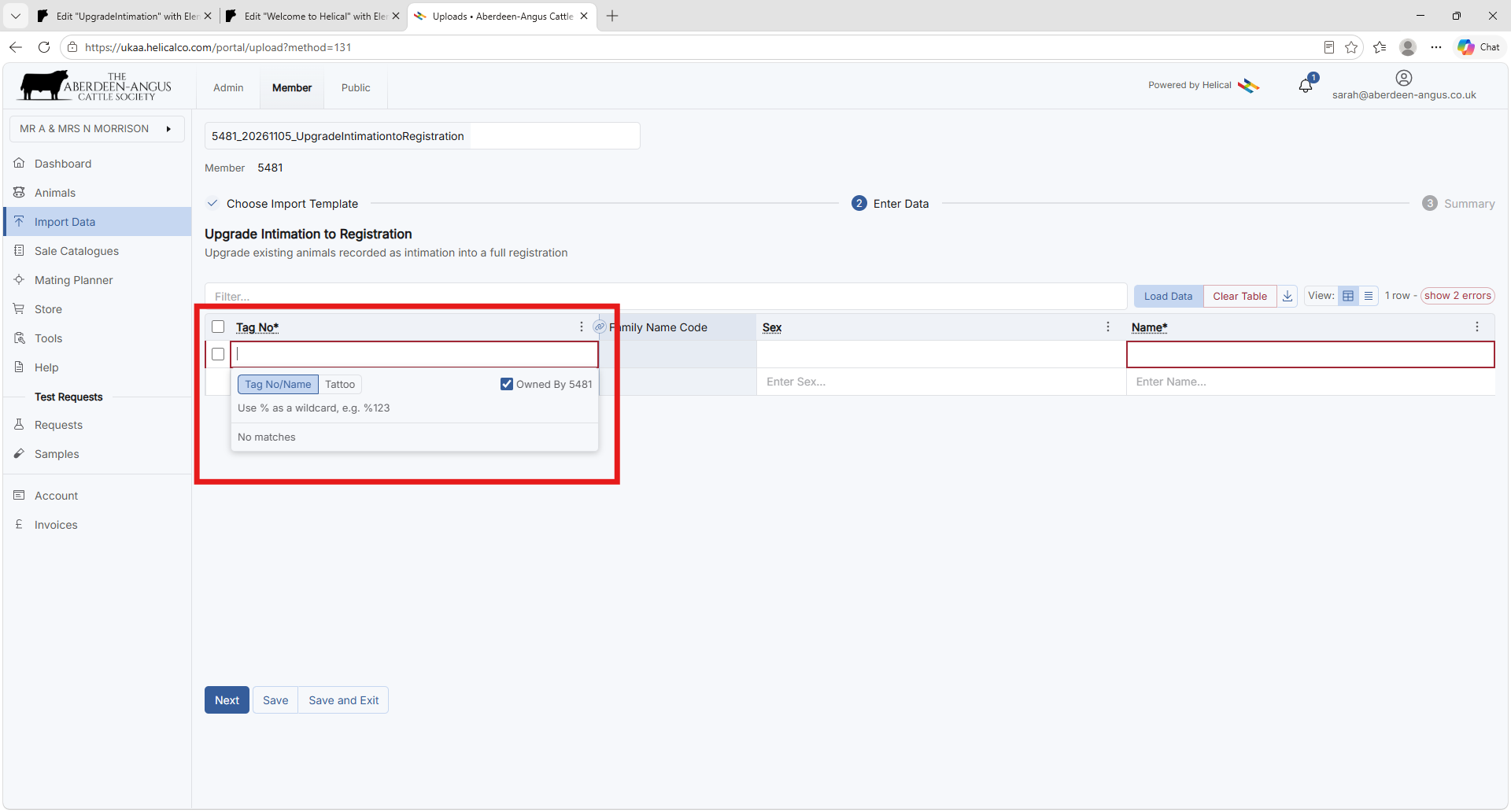
- Click the Tag No* field and begin typing the animal tag number.
- Select the matching animal from the search list.
- Check the populated animal information, including the Family Name Code and Sex, to confirm the correct animal is selected.
Step 4
Enter the registration name
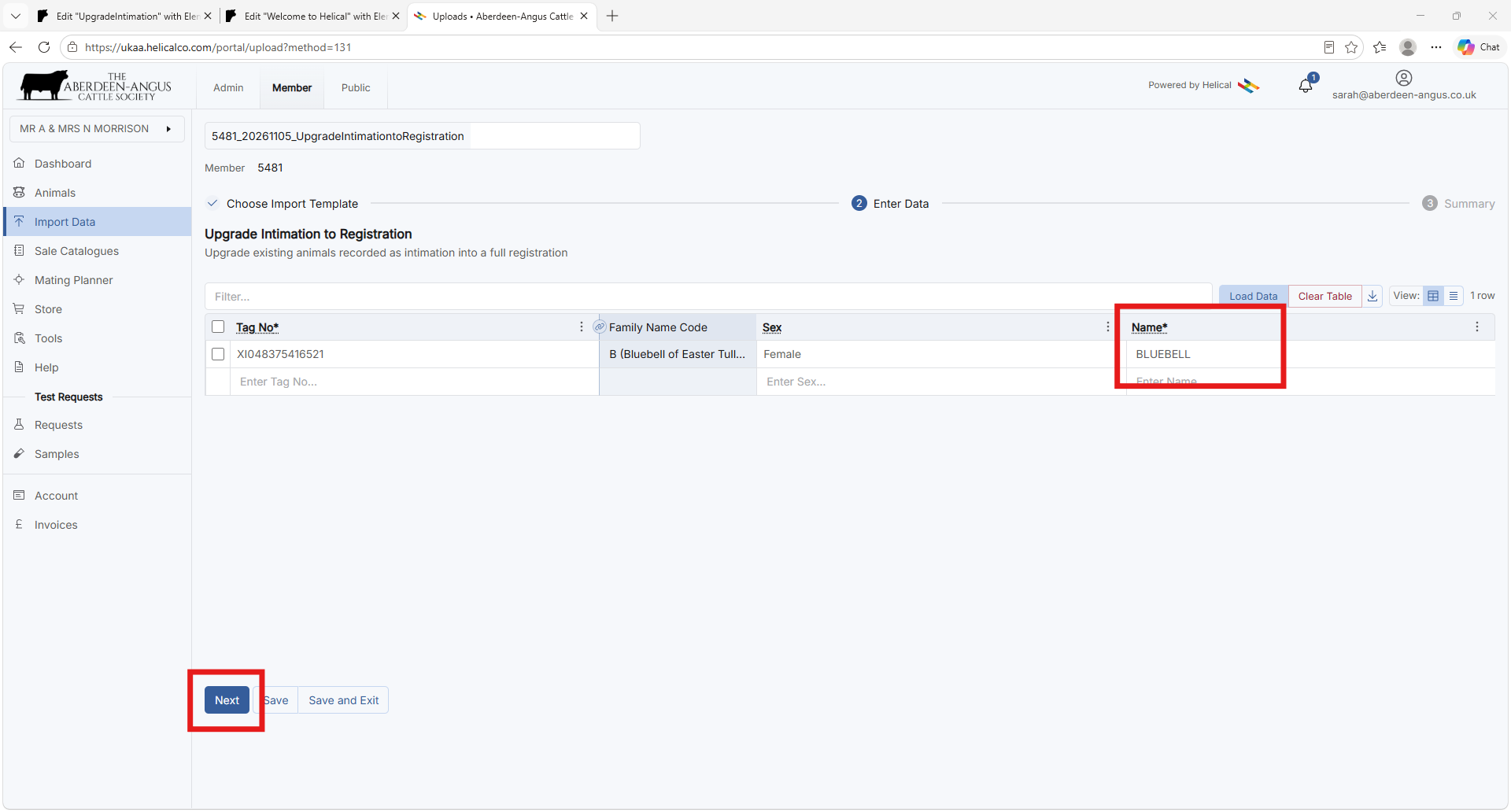
- Enter the animal’s registration name in the required Name* field.
- Check that all mandatory fields are complete, then select Next. Resolve any displayed validation errors before proceeding.
Step 5
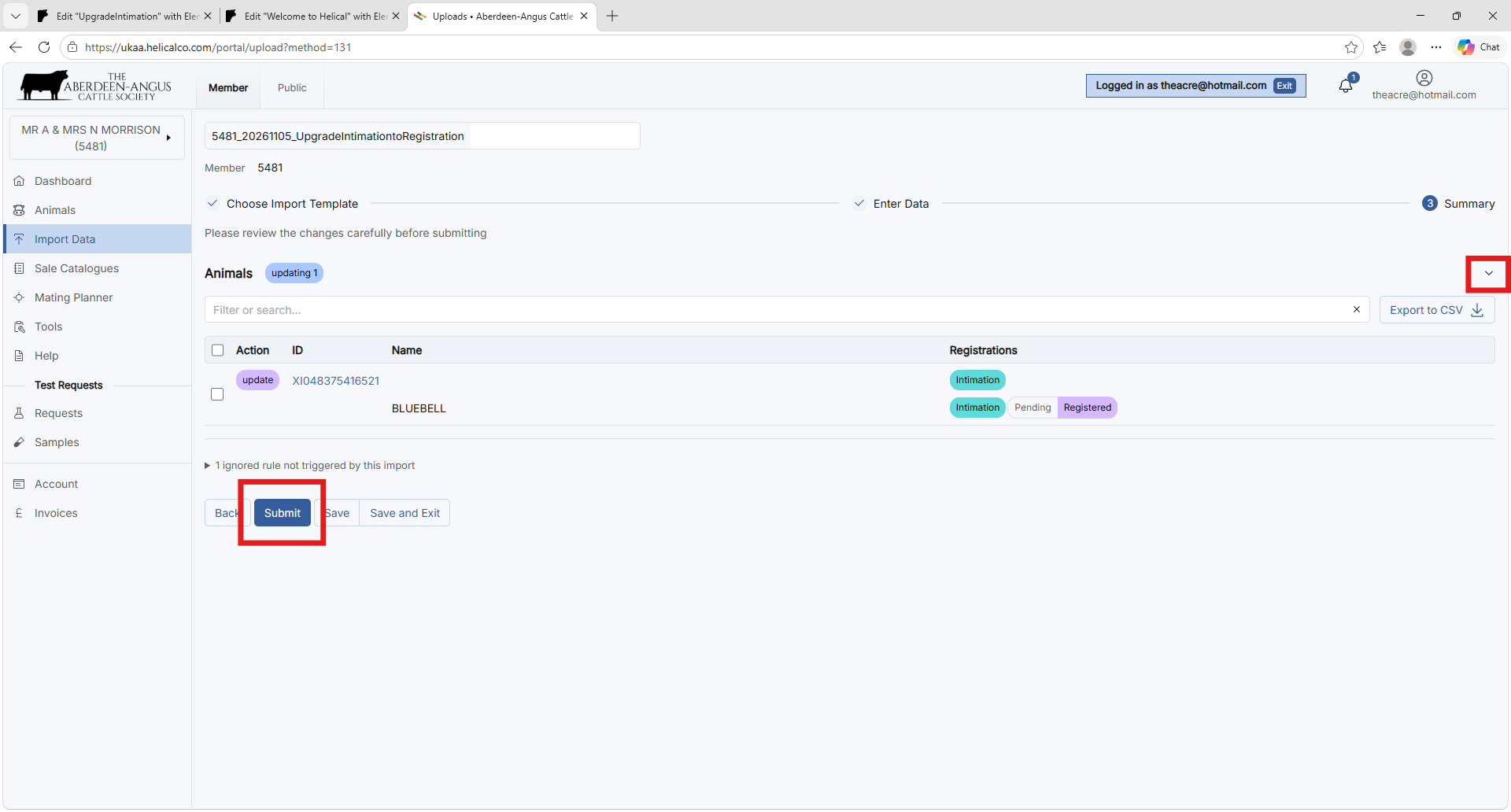
Review the summary
- On the Summary screen, review the listed animal update and any messages.
- If the details are correct, select Submit. If there is an error, you must return to correct it first before you can submit.
Step 6
Confirm the submission
- When the Submit Import? confirmation window appears, read the confirmation prompt.
- Complete Additional notes on submission if required and select Submit to proceed.
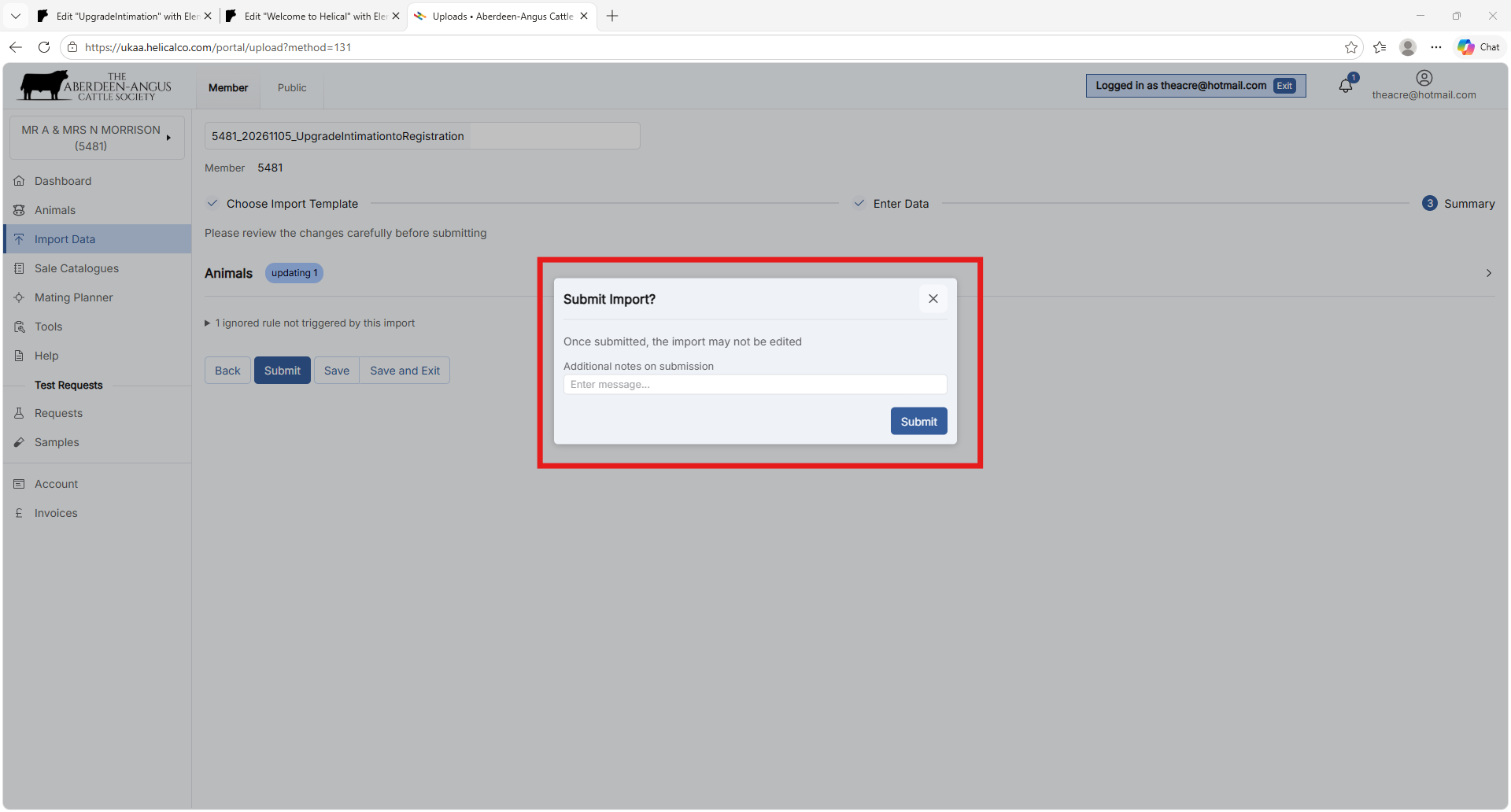
Important: Saving or using Save and Exit does not submit the upgrade.
Need Help?
Telephone: 01738 622477
Email: registrations@aberdeen-angus.co.uk
Website: www.aberdeen-angus.co.uk